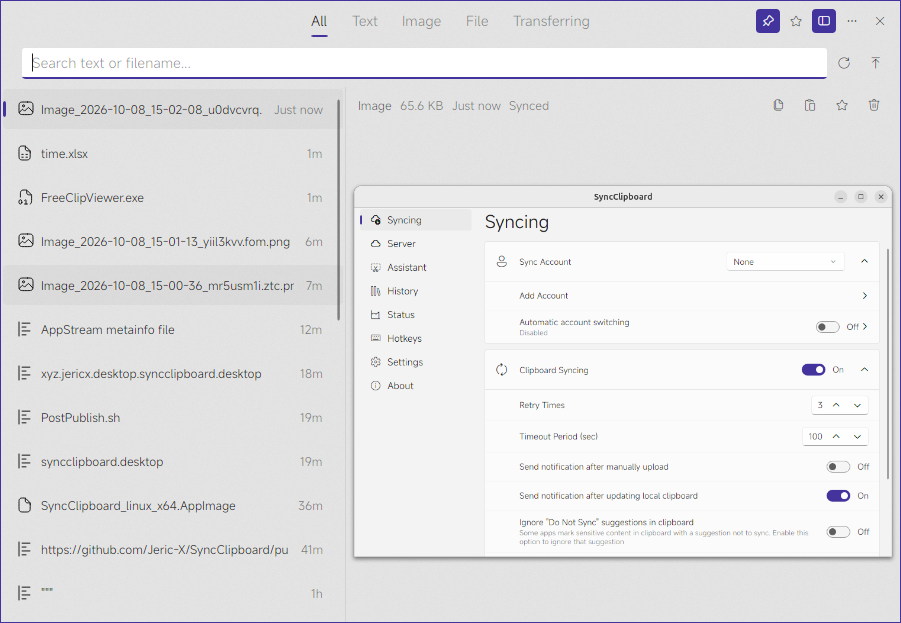
Desktop clients
The Windows, macOS and Linux clients can sync automatically and keep a clipboard history. Download SyncClipboard
Windows
The client supports Windows 10 2004 and later. Choose an EXE installer starting with SyncClipboard_win_, or unpack the portable ZIP and run SyncClipboard.exe. To install with WinGet, run:
winget install --id JericX.SyncClipboard --exact --source wingetmacOS
Choose the SyncClipboard_macos_ package for your processor. Open it and drag the app to Applications. Apple Silicon requires macOS 12.7 or later. Intel requires macOS 13.3 or later. With Homebrew, run:
brew install --cask Jeric-X/tap/syncclipboardIf copy or paste triggered by SyncClipboard stops responding, check the app under System Settings → Privacy & Security → Accessibility. If access is already granted but the app still asks for it, remove the entry, restart the app and grant access again.
Linux
Choose a SyncClipboard_linux_ package for your distribution and architecture. Give the AppImage execute permission before starting it. Other packages require glibc 2.38 or newer. Arch users can install the AUR package.
For delayed clipboard updates or garbled text, check that xclip is installed on X11 or wl-clipboard on Wayland. For global shortcuts or simulated paste, check the permissions required by your input backend. Linux input permissions guide
Connect and use history
Under Syncing, add and select your account, then enable clipboard syncing. Follow Your first sync to check both directions. In the history panel, filter entries by type or search for text and filenames. You can assign a keyboard shortcut to open the panel in Hotkeys.