Android app
Use SyncClipboard Mobile to share text, images and files from other apps or retrieve content copied on your computer. Download the Android APK
Add a server
- Install the APK. In Settings, open the server configuration and tap Add.
- For a desktop-hosted or standalone server, choose SyncClipboard Server and enter its address, username and password. For WebDAV or S3, choose the matching server type.
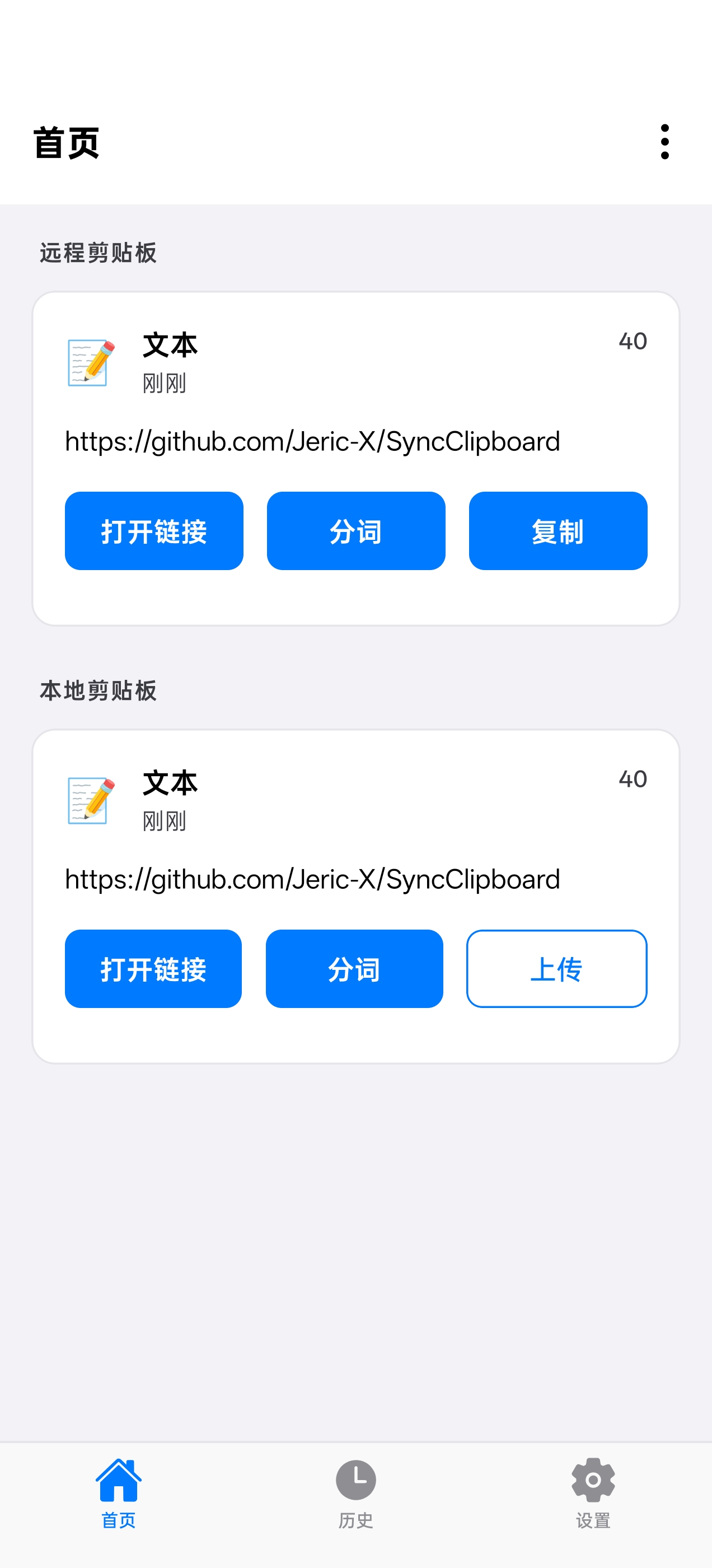
- Test the connection, save the server and select it. On the home screen you can see both the local clipboard and the remote clipboard.
Send and receive manually
- Send text. Copy it and upload the local clipboard from the home screen. You can also select text in another app and choose the upload action in Android’s text selection menu.
- Send an image or file. Open the share menu in your gallery or file manager and select SyncClipboard.
- Receive content. Copy text or an image from the remote clipboard. The app also offers Quick Settings tiles and home screen shortcuts for quick uploads and downloads.
- Save files. In sync settings, enable automatic saving and choose a destination folder. A quick download then saves the file there.
Sync in the foreground or background
Automatic sync in the sync settings applies while the app is open. To sync when you switch apps, enable background tasks in Settings. Background downloads and background uploads have separate switches.
Android 10 and later restrict clipboard reads in the background. If manual uploads work but copying in another app triggers no upload, open the background clipboard settings. Choose the overlay or Shizuku option supported by your device and grant the requested permission. For occasional transfers, the Android share menu also works.
Find a previous clipboard entry
Open History and filter by content type, or press and hold to select several entries. To share history between devices, connect to a SyncClipboard server and enable history sync.